
Most people arrive at this question the same way. Your board has decided the website looks dated. Someone has clicked through Wild Apricot's stock themes, found them all slightly wrong, and asked the obvious next question: can we just make it look how we want?
The answer is yes — further than most people expect — but the path there is not what the admin interface suggests. This guide explains how Wild Apricot theming actually works, which layer solves which problem, and where the real costs are.
Where I'm coming from: I've been a certified Wild Apricot partner since 2014 and I build custom themes on the platform regularly — some of them a decade apart, on the same accounts. Wild Apricot theme work is a meaningful part of my business, so read the recommendation at the end with that in mind. What the experience buys you is a straight answer about which of these layers you actually need, because in most cases it's a cheaper one than you were about to pay for.
Where Stock Themes Fall Down
Wild Apricot ships a library of stock themes. They are responsive, they work with the platform's gadgets — events, member directory, login, forms — and they require nothing but clicking. What they are not is good.
They look dated, they look generic, and they look like each other. Once you have seen a few dozen Wild Apricot sites you can identify one from across the room, which is precisely the problem: your organization ends up with a website that announces which vendor you bought rather than who you are.
Boards notice, and they do something about it. I have watched organizations start serious conversations about leaving Wild Apricot entirely — pricing out WordPress, scoping migrations, spending months of volunteer time — because the board could not stand looking at the website. Not because membership renewals were broken. Not because events did not work. Because it was embarrassing.
Boards pay dearly to solve a design problem that way. Abandoning a working membership system to escape a stylesheet costs vastly more than fixing the appearance would have — and I would rather say so before you commission the migration.
So treat the stock theme as a starting point, not a destination. The useful question is not whether to customize but which layer to do it in — and the cheapest layer solves more than people expect.
Start With the CSS Box
The cheapest layer is one most administrators never find: the CSS box. In WA admin under Website → CSS, you can write custom CSS that layers on top of whichever stock theme you have selected. It saves atomically, applies immediately, and requires no deployment machinery at all.
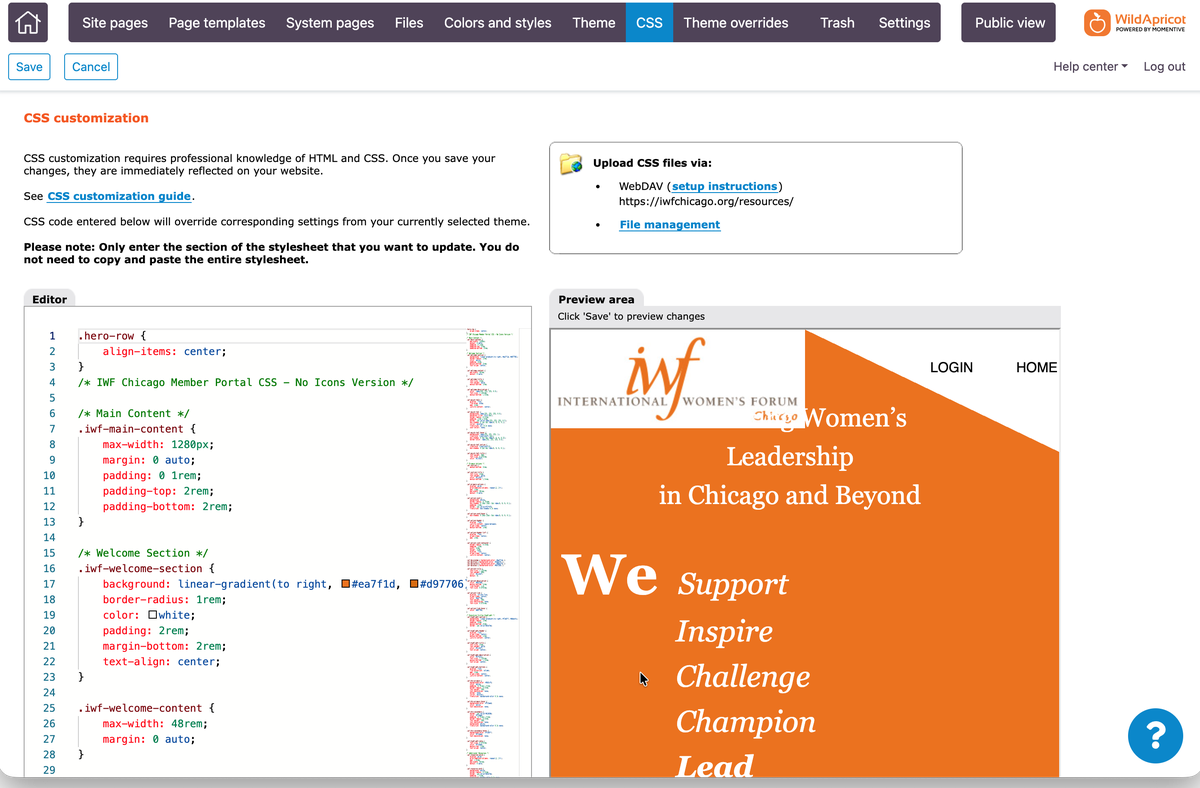
The CSS box reaches further than it looks. Fonts, colors, spacing, button styling, hiding elements you don't want, adjusting how gadgets present themselves — you control all of it from here, and a modest set of changes sometimes lifts a site enough to justify doing nothing more.
Organizations rarely call a Wild Apricot partner for that, though. Tuning type and color on a stock theme improves it; it does not make it yours. Most of the stock library still wears its early-internet origins, and no amount of CSS rewrites the structure underneath that dates it. If your organization needs to project professionalism and competence, I will tell you to keep going rather than sell you a small job that leaves the real problem in place.
CSS or Overrides: Which One Do You Need?
Custom CSS and theme overrides solve different problems, and knowing which you are facing saves real money.
The tell is simple. If you can describe the problem in terms of how it looks — fonts, colors, spacing, a button that reads as generic — CSS may reach it. If you have to describe it in terms of where things go — a different homepage architecture, custom page types, a members area that feels like part of the same site — you need overrides. Most organizations that care how they come across land in the second category. So do the association web design patterns that get members using a site: the two-door homepage, a directory that reads as a benefit, event pages that sell the room.
A custom theme is not a branding exercise. That assumption stops more boards than budget does, and it usually misleads them. If your logo and your colors still serve you, we build on them — the theme presents the identity you already have with confidence rather than replacing it. Rebranding earns its own project when the identity itself has stopped fitting. It should never gate a website you are proud to send people to.
And it should not create a maintenance problem. You may have heard that custom themes break when the platform updates. A properly built one does not: overrides replace specific files rather than merging with them, a well-scoped theme leaves as much of Wild Apricot's internal machinery alone as it can, and we scope the few pieces that must touch it deliberately. We also guarantee our work. If an update ever disturbs something we built, we fix it — our problem, not your board's.
How Wild Apricot Theming Actually Works
Wild Apricot's customization system has four layers. Understanding which one a given problem lives in is most of the skill, so here they are from outermost to innermost.
+ LayoutsTemplate.tpl
+ LayoutX.tpl
+ Item.tpl
Layer 1 — The page envelope
Two entry points let you inject custom resources into the page chrome, and you pick one, not both.
MainTemplate.tpl replaces the entire HTML shell — <html>, <head>, <body>, the works. You call WA's <$Head()$> directive to render the platform's own head content, then add your own stylesheets, fonts, and scripts after it. Choose this when you need control over body classes or IDs, which some designs require.
Head.tpl is the surgical alternative: it replaces only the contents of <head>, leaving WA's outer HTML structure intact. You render the platform's styles and scripts through directives like <$PageModel.Styles:Links(stylesheet = "true")$> and add your own alongside.
Default to Head.tpl. It leaves more of Wild Apricot's machinery in place, which means less of your code to maintain when the platform changes underneath you. Reach for MainTemplate.tpl only when you actually need body-level control.
Layer 2 — Page layouts
Most custom design work lives here, and it takes three files working together:
LayoutsConfig.cfg— an XML file declaring each layout's ID, title, and description. The title is what your administrators see in the page settings dropdown.LayoutsTemplate.tpl— the dispatcher, which branches onPageModel.Layout.Xflags to decide which layout renders.LayoutMain.tpl,LayoutHome.tpl, and friends — one file per page archetype, containing the actual body structure with named<$Area Name="X"$>slots that admins fill through the page editor.
Those <$Area$> slots are the important idea. They're how you give your client editable zones inside a structure you control — the layout is yours, the content stays theirs.
The gotcha that has bitten every theme I've inherited: adding a layout requires touching all three files. Declare it in the config and build the template, but forget the dispatcher entry, and the layout silently never renders — no error, no warning, just nothing. I have found orphaned layouts sitting in LayoutsConfig.cfg on multiple accounts, declared and built but never dispatched, presumably abandoned after someone couldn't work out why the new page type wouldn't appear.
Layer 3 — Gadget overrides
Gadgets are Wild Apricot's functional components: the events list, member directory, login box, menus, recent blog posts. You can override their templates too, and overriding them costs more than any other layer by a wide margin.
A gadget override is not a skin. It's a full clone of the stock template — HTML structure and client-side JavaScript — and once you own it, you own the component's entire behavior. Collection gadgets use a two-file pattern: GadgetTemplate.tpl for the shell, Item.tpl for each item, with iteration handled by directives like <$Model.Items:Item()$>.
These are tightly coupled to Wild Apricot's internal framework, which makes them the layer to scope deliberately rather than reach for by default. Use a gadget override when CSS and layout-level changes genuinely cannot get there — and skip it when they can. Most needs people assume require one — changing a font, moving the login link, restyling the events list — do not.
Layer 4 — Page content
The last layer isn't theme work at all. Complex-looking landing pages are often just HTML pasted into a page body through the admin editor, referencing class names your theme's CSS already defines.
Knowing this changes who can do the work and how fast. Content at this layer needs no deployment, no rebuild, and no developer — once the CSS exists, an administrator can build new pages against it indefinitely.
The Practical Realities Nobody Documents
Five things about working with theme overrides that cost real time to learn:
Overrides don't work on trial or clone accounts. Wild Apricot doesn't make theme overrides available on trial or clone accounts; you have to ask its support team for access. That catches people out, because the safest place to build a new theme is a copy of the live site, where nothing your members see can break. Settle it before the build starts: ask Wild Apricot support to enable overrides on the copy, or move the copy to the lowest paid plan, billed monthly, for the length of the build and cancel it at launch. The CSS box works on a trial either way, so styling can start while you sort it out.
Deployment is WebDAV, and it's drag-and-drop only. You mount the site's /Resources/ folder as a network drive and replace files by dragging a locally-edited copy over the old one.
- macOS: in Finder, press ⌘K (Go → Connect to Server), enter
https://yoursite.wildapricot.org/Resources/, and sign in with your Wild Apricot administrator credentials. The folder mounts under Locations. - Windows: in File Explorer, right-click This PC → Map network drive, tick “Connect using different credentials,” and enter the same
https://yoursite.wildapricot.org/Resources/address. If the address is rejected outright, use This PC → Add a network location instead and paste the URL there. Windows serves WebDAV through the WebClient service — if mapping fails immediately, confirm that service is running (services.msc) and started.
Whichever platform you're on, the critical rule is the same: opening a file directly on the mount, editing it, and saving in place does not reliably persist. The save appears to succeed and the change simply isn't there. Always edit a local copy, then drag it onto the mount to replace the original. Reading files off the mount is fine; writing back through an editor is not.
If the built-in clients give you trouble — and on Windows in particular they sometimes do — a dedicated WebDAV client like Cyberduck (macOS and Windows) or WinSCP (Windows) connects to the same URL and tends to be more predictable for repeated deployments.
Folder browsing can break. Occasionally a subfolder won't open at all — on macOS it gets served as a bogus “Unix Executable File” that Finder refuses to enter; on Windows the equivalent symptom is a folder that reports an error or shows empty despite containing files. Either way the workaround is the same: connect directly to the deepest folder URL that contains your target file (⌘K on macOS, Map network drive on Windows), bypassing the broken parent entirely.
Two paths that look like they should work, don't. The Files applet in WA admin renders blank for theme override folders — it's storage, not a deployment tool. And command-line uploads to Theme_Overrides/ fail; you can't script it and you can't read files back to verify. Verify by loading the rendered page, not by reading the file you just uploaded.
Changes need a rebuild. After deploying, click “Rebuild theme” in WA admin. If it throws an error about failing to delete a temp build directory, that's the build server's own lock, not a problem with your file — click it again and it usually succeeds.
There's a sixth, subtler one worth knowing if you're building anything that behaves differently for logged-in members: the template variables that expose authentication state don't work identically on every theme. I've hit a base theme where PageModel.Security.IsAuthorized rendered empty even inside a confirmed member session. When that happens, the answer is to read the client-side page globals that Wild Apricot writes into every page's <head> instead. The general lesson: probe what your specific theme actually exposes before building logic on top of it, rather than trusting the documentation.
What a Custom Theme Involves
Scoping is more predictable than it looks, because the shape of the work is consistent.
Start with an HTML mockup, not a design comp. Building a working HTML/CSS prototype first means the implementation questions get answered during design, when they're cheap. Static image comps hide the problems — the angled section that doesn't tile, the gradient that fights the gadget underneath — and those surface during the build, when they're expensive.
Pick the base theme closest to your target structure. Every override is a file you now maintain, so starting from the stock layout that most resembles your design means fewer of them.
Then it's mechanical translation: one entry-point file, typically three to seven layouts, your stylesheet, and — only if genuinely needed — a gadget override or two. A lean custom theme runs about nine files; a thorough one, closer to twenty. Gadget overrides are the line items that scale non-linearly, which is why I quote them individually rather than bundling them.
One approach worth mentioning if you're running more than one platform: because the visual layer is just CSS, the same compiled stylesheet can serve a Wild Apricot theme, a WordPress site, and a custom application simultaneously. Organizations running a WordPress marketing site with Wild Apricot handling members — a very common arrangement — often have two sites that don't look related. They can. The design work happens once and deploys to both.
Wild Apricot Website Examples
Theory only goes so far, so here are live sites you can click through. Both come from the reference list on our Wild Apricot partner directory profile — a resource worth knowing about in its own right, because every certified partner's listing includes reference accounts you can visit before you hire anyone.
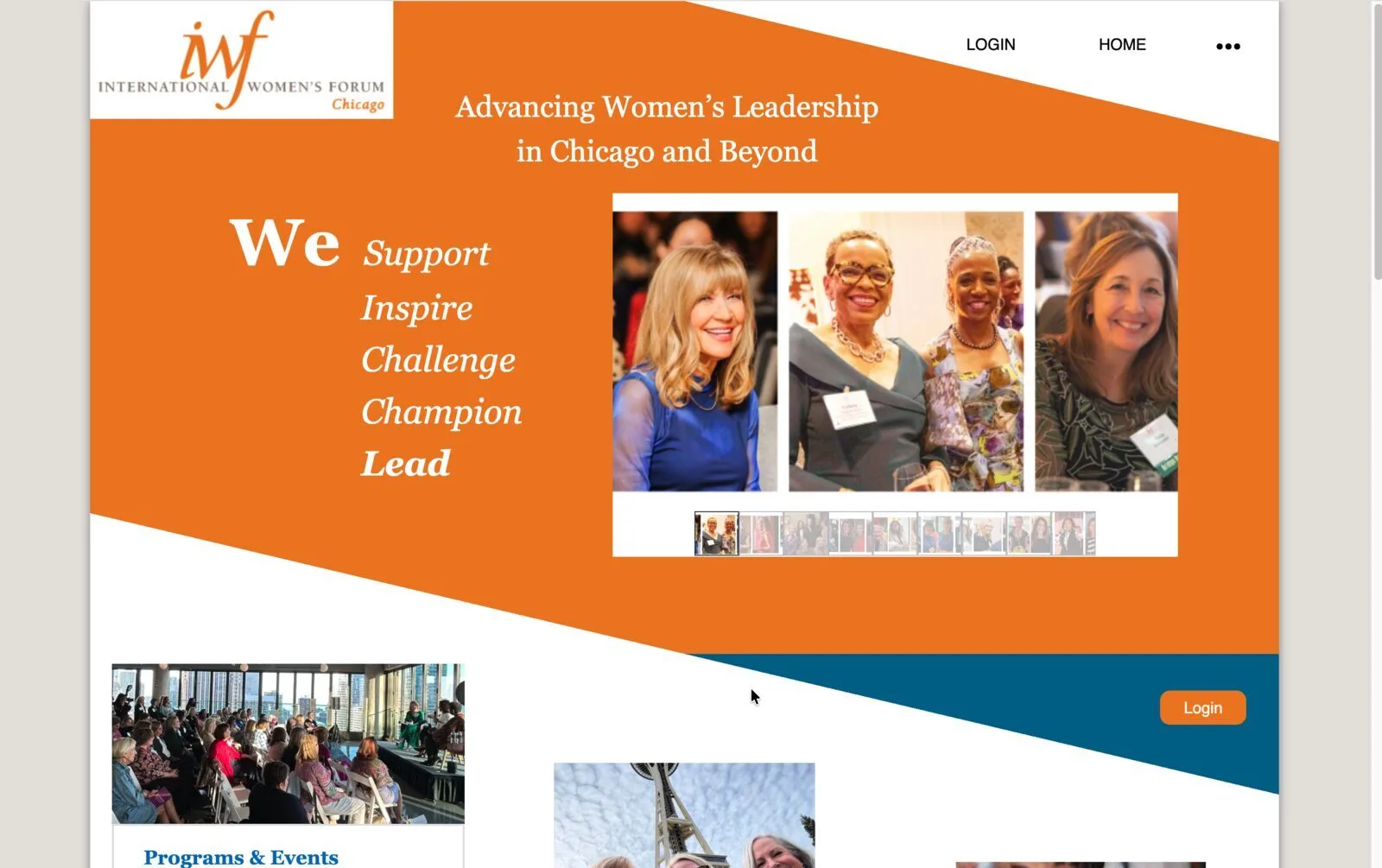
International Women's Forum — Chicago — a customized Wild Apricot site with a companion member portal built against the Wild Apricot API. The CSS box screenshot earlier on this page is IWF's admin: that site's visual layer is maintained in exactly the workflow this guide describes.
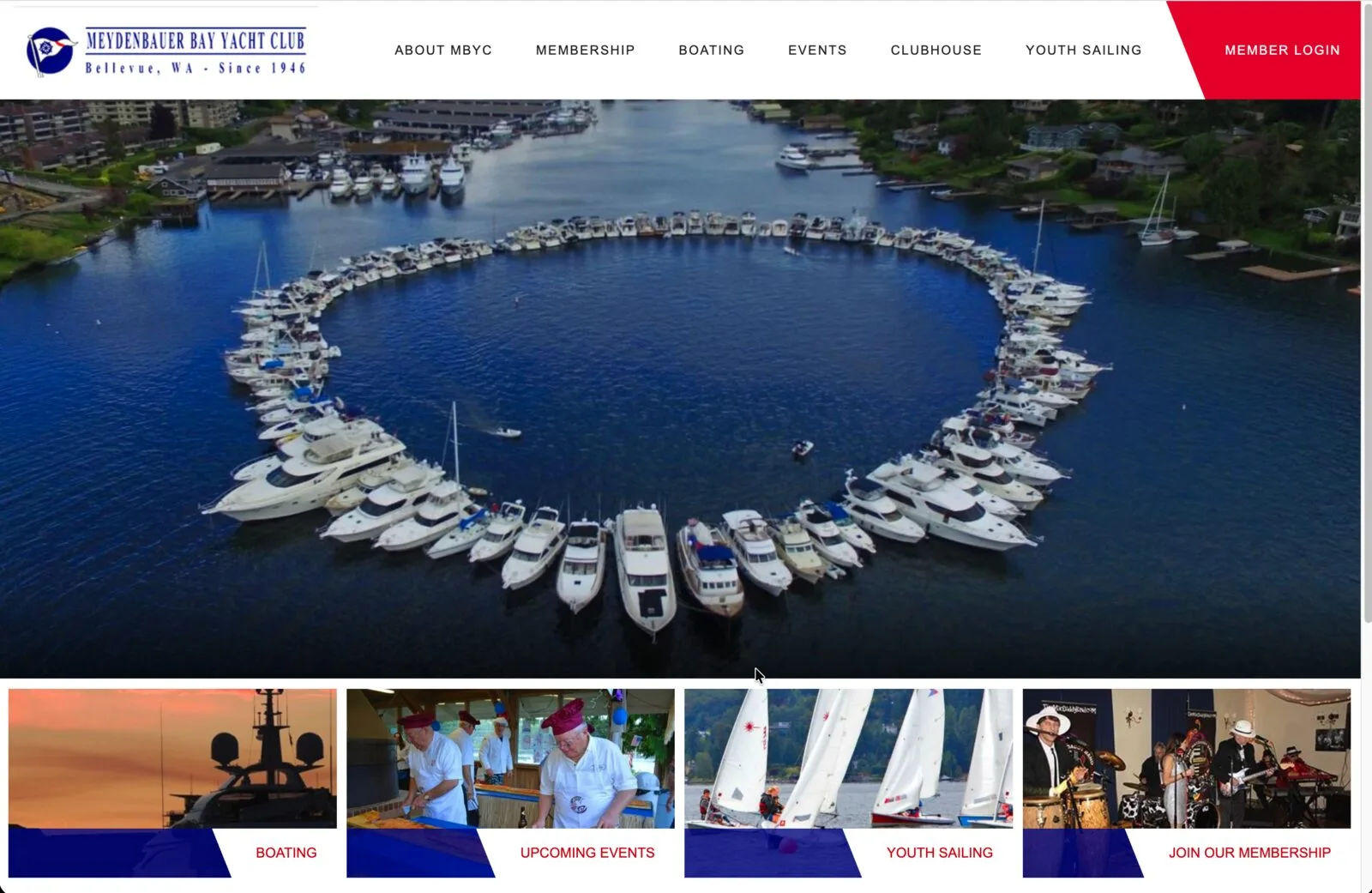
Meydenbauer Bay Yacht Club — migrated from ClubExpress onto Wild Apricot, with the theme built around the club's existing brand rather than a rebrand — the point made above about custom themes and branding, in practice.
The rest of the current reference list — associations, clubs, and neighborhood organizations — is on the directory profile, and every site on it is live Wild Apricot work.
When Theming Isn't the Answer
Sometimes the honest answer to “can we make Wild Apricot look how we want” is yes, but you shouldn't.
If you're paying for a substantial custom theme and fighting Wild Apricot's contact-based pricing model and working around functional limits, you may be spending real money to make a platform behave like one you'd rather be on. That's the point where the conversation should widen from design to platform — and I'd rather have that conversation before you commission the theme than after.
If that's where you are, the honest comparison is in Wild Apricot Alternatives: A Certified Partner's Guide — including the cases where staying put is the right call. And if what you actually need is an application rather than a website, that's custom development, which is a different conversation again.
But most organizations who land on this page don't need any of that. They need the CSS box, or a well-chosen base theme with a competent override set. That's the cheap answer, and it's usually the right one.
Frequently Asked Questions
Can you use a completely custom design on Wild Apricot?
Yes. Through theme overrides you control the page envelope, the layout structure of every page type, and the styling throughout. The constraint isn't visual — it's that Wild Apricot's functional gadgets render their own markup, so a fully custom design means either styling around them or taking ownership of those components too.
Do I need theme overrides to change how my site looks?
Usually not. Custom CSS through WA admin's CSS box handles fonts, colors, spacing, and most visual identity work without touching the override system at all. Overrides are for structural changes — different page architectures, custom page types, altered component behavior.
How many files does a custom Wild Apricot theme involve?
A lean one is around nine: an entry-point file, several layouts, and a stylesheet. A thorough one approaches twenty. Gadget overrides add disproportionately to both cost and ongoing maintenance, so they're worth scoping individually.
Can we build the new theme on a copy of our site first?
Yes, and it's the safest way to work, but plan for one limit: Wild Apricot doesn't allow theme overrides on trial or clone accounts. Ask Wild Apricot support for access on the copy, or move the copy to the lowest paid plan, billed monthly, for the length of the build and cancel it at launch.
What happens to my custom theme when Wild Apricot updates?
A properly built theme keeps working. Overrides replace specific stock files rather than merging with them, so platform changes to files you have not overridden flow through normally, and a well-scoped theme touches as little of Wild Apricot's internal machinery as possible. We also guarantee our work — if an update ever does disturb something we built, we fix it.
Do we need to rebrand before commissioning a custom theme?
No. If you have a logo and colors you are happy with, the theme gets built around them. Rebranding is a separate project you may choose to undertake, not a prerequisite for a better website.
Can a custom Wild Apricot theme be migrated if we change platforms later?
The CSS and assets port directly — that's the layer carrying your visual identity. Layout structures translate conceptually but not as files, and gadget overrides don't port at all; they become a requirements list to reimplement. In practice a migration preserves how the site looks far more easily than how it's built.
More Guides
The rest of our Wild Apricot and association series, in reading order.
Setup, migration, theming, and integrations from a certified partner since 2014. Wild Apricot Alternatives
An honest comparison of the alternatives, including when staying put is the right answer. Wild Apricot Accessibility
What the platform handles, what it can't, and six fixes a volunteer can do this week. Wild Apricot + Google
Email, calendars, analytics, and the API: connecting Wild Apricot to Google Workspace. Association Website Design
What an association site must do, the platform landscape, the patterns that work, and what it costs. Membership Website Design
The companion guide for clubs and membership organizations: join, participate, renew.
Not sure which layer you need?
Send me your site and tell me what you want changed. I will tell you which layer actually solves it — and if the CSS box covers it, I will say so.
Ask About Your Theme