
Most small organizations on Wild Apricot run on two systems at once. Wild Apricot holds the members, the events, and the dues. Google holds everything else: the email, the shared drive, the sign-up forms, and the spreadsheet the treasurer swears by. The two don't talk to each other, so a volunteer ends up retyping names from one into the other, and the board report gets built by hand every month.
The good news is that a lot of the connection already exists, and most of the rest can be built inside the Google account you already pay for, with no third platform. This is the map I give clients: what works on its own today, the email setting that breaks most often, and the pattern we use to get forms, follow-ups, and a board dashboard working across both systems.
The Setup This Guide Assumes
Wild Apricot runs your website, members, events, and payments, but it doesn't host your organization's email or your domain's DNS. Those live somewhere else, and for most of the organizations I work with, that somewhere is Google. This guide assumes the fully branded version of that setup:
Google Workspace is the communications backbone. Your domain's mail is hosted by Google: staff and volunteer mailboxes, shared addresses like info@ and membership@, and every reply a member sends. Your domain's MX records point to Google, so anything addressed to you@yourorg.org arrives in Gmail.
Wild Apricot sends the branded member mail. Renewal notices, event confirmations, and newsletters go out from Wild Apricot as you@yourorg.org, authenticated by records in your DNS. When a member replies, the reply lands in your Google inbox.
Wild Apricot is the record. People, memberships, events, and payments live there. Surveys, timing, analysis, and reporting happen in Google. The same fact should never be kept by hand in both places. If it has to exist in both, a script keeps them in step.
Organizations that skip the last rule end up with two member lists that disagree, and nobody knows which one is right. If your email is hosted somewhere other than Google, such as Microsoft 365, most of this guide still applies; only the DNS records in the email section change.
What Already Works, No Code Required
Before building anything, use what's included. Each of these is a settings change or a copy-and-paste.
Signing in with Google. Members can sign in on your Wild Apricot login page with their Google, Microsoft, or Apple account instead of a separate password. For members who already live in Gmail, that's one less password to forget at renewal time.
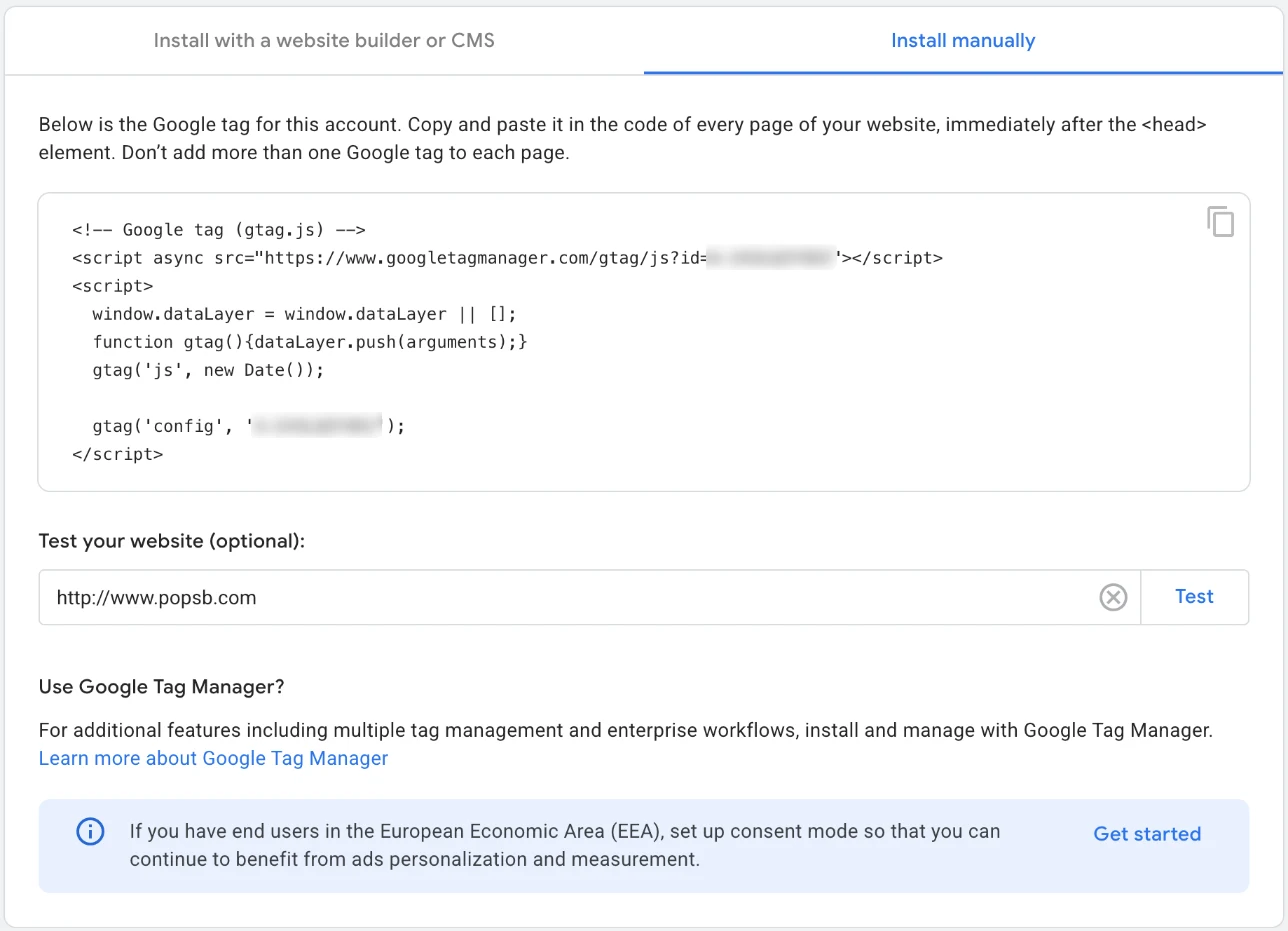
Google Analytics. In Google Analytics, open Admin → Data streams, choose your website's stream, click View tag instructions, and switch to Install manually. Copy the whole Google tag and paste it into Wild Apricot under Website → Settings → Global JavaScript, as Wild Apricot's help describes. It applies to every page, and Google can take up to 48 hours to start showing data.
Google Search Console. Verify ownership either with the meta tag Google gives you, pasted into the Raw headers box at Website → Settings → Meta tags, or with a DNS record at your domain provider. The DNS route covers every version of your domain at once.
The sitemap catch. Wild Apricot doesn't generate a sitemap.xml file, which is the list of pages Search Console asks for. To fill the gap, we built a free Wild Apricot Sitemap Generator. Enter your site's address and it crawls your public pages, leaves out members-only pages, flags broken links, and gives you a ready-to-upload sitemap.xml with step-by-step instructions. Upload the file to Wild Apricot's Files area and submit its address in Search Console. Submitting it there matters: Wild Apricot keeps uploaded files in a folder, and Google only applies a sitemap stored in a folder to your whole site when it's submitted through Search Console. The file doesn't update itself, so run the generator again whenever you add or rename pages.
Google Maps. Embed an interactive map on your contact or events page from the map's Share → Embed code.
Google Fonts. Add Google fonts to your site's look through the theme's override files. That's a theme-layer change, so it carries across every page.
Google Pay. Organizations using Personify Payments can accept Google Pay for one-time payments such as event registrations and manual renewals. One cost to know about before choosing a processor: US and Canadian organizations that connect an outside payment system, such as PayPal, Stripe, or Authorize.Net, pay Wild Apricot a 20% Payment System Servicing Fee on their subscription, even if no payments go through it.
Google Forms. Any Google Form can be placed on a Wild Apricot page through Send → Embed, with responses landing in a Google Sheet. That's fine for a volunteer interest form or a post-event survey; our notes on forms for Wild Apricot compare the options. It's the starting point for the connected pattern later in this guide, not the end of it.
Wild Apricot Email: The Setting That Breaks Most Often
In this setup, two services send mail as your domain: Google Workspace for everyday mail from staff and volunteers, and Wild Apricot for member mail. Since early 2024, Gmail and Yahoo reject or spam-folder bulk mail from domains that can't prove who's allowed to send for them (Google's sender guidelines). Since January 31, 2024, Wild Apricot requires three DNS records before it will send as your domain. Without them, your From address quietly reverts to yourname@wildapricot.org.
MX: point it at Google. Your MX records tell the world where to deliver mail for your domain, and Google gives you the exact values when you set up Workspace. Wild Apricot doesn't host mailboxes, so it needs no MX record. Use a Google-hosted address such as info@ as Wild Apricot's From address, so member replies land in an inbox someone watches.
Then the three records Wild Apricot requires, and how they live alongside Google:
SPF: one record, both senders. This is where most setups break. A domain may have only one SPF record. If Google Workspace setup created one and Wild Apricot's instructions led someone to add a second, both stop working. The fix is a single record that names both, which is exactly Wild Apricot's own sample:
v=spf1 include:wildapricot.org include:_spf.google.com ~all
DKIM: two records, no conflict. Wild Apricot uses a CNAME named default._domainkey pointing to dkim.wildapricot.org. Google Workspace uses its own google._domainkey record, which you generate in the Google Admin console. They have different names, so both can exist at once.
DMARC: one record. A TXT record named _dmarc whose value begins v=DMARC1; p=none is all Wild Apricot checks for. Start at p=none, which only monitors, and tighten it later once you know all your senders pass. The v must be lowercase; Wild Apricot marks an uppercase V as invalid.
To confirm it worked, go to Website → Settings → Domain name in Wild Apricot and click each Check button. Green on all three means you're done. Allow up to 48 hours after a DNS change before checking.
Calendars: The Gap Everyone Hits
Members can add any single Wild Apricot event to Google Calendar, Outlook, or Apple Calendar from the event's details page. What Wild Apricot doesn't offer is a live feed of your whole calendar that Google Calendar can subscribe to and keep up to date. It has been on Wild Apricot's member wishlist for years.
Three ways to close the gap, from simplest to sturdiest:
- Per event: teach members the "Add to my calendar" link, and put it in your event announcement emails.
- An automation service: Make and Zapier both have ready-made templates that copy new Wild Apricot events into a Google Calendar. They work, for a monthly fee, and only for the events you pick up.
- A small script in your own Google account: a daily Apps Script job reads your upcoming events through Wild Apricot's API and keeps a public Google Calendar in sync. Members subscribe once, and changes and cancellations follow automatically.
Forms, Sheets, and the Wild Apricot API: The Connected Pattern
This is the approach we designed for a nonprofit arts organization that wanted everything to stay inside the two systems it already had: Wild Apricot and its Google Workspace. Its goals were common ones. Survey people after events, follow up with the people who raise their hands, nurture visitors toward membership, and give the board a monthly picture without anyone building a spreadsheet by hand. Here's how the pieces fit.
1Wild Apricot does all the sending
Every message goes out from Wild Apricot, under your domain and in Wild Apricot's email history, so members never get mail from a second system. Wild Apricot's API can send an email to a single contact, a saved search, all members, or the people who checked in at a particular event. That last one is what makes "survey everyone who actually came" possible.
2Google Forms collects the answers
One short form per survey type. The link in the email is pre-filled with the member's details, so responses match the right person without anyone signing in. Test which fields your Wild Apricot email macros can place in a link before you design around them.
3Apps Script does the timing
Once a day, a script written in Google Apps Script checks Wild Apricot for new contacts, recent attendees, and lapsing members. It works out who is due for the next step in a sequence and asks Wild Apricot to send it. A log in the Sheet records each step as sent, so nobody gets the same message twice.
4Answers flow back into Wild Apricot
When a survey comes in, the script writes what matters back to the member's Wild Apricot record: interests, volunteer willingness, permission to follow up. Your membership data gets richer instead of a second list growing in a Sheet.
5Volunteers change the wording, not the code
The timing and wording live in a plain "Campaigns" tab: audience, step, days after the trigger, and which message. A volunteer can change "send the thank-you two days after" to three days without touching a line of code. Anyone who raises a hand lands on a follow-up tab with an owner and a status.
A Board Dashboard in Looker Studio
Looker Studio is Google's free reporting tool, and it's the part boards notice. It reads the same Sheet the scripts keep up to date and turns it into a branded report in your colors, with your logo and your fonts. It can have separate pages for engagement, events and surveys, membership, and volunteers.
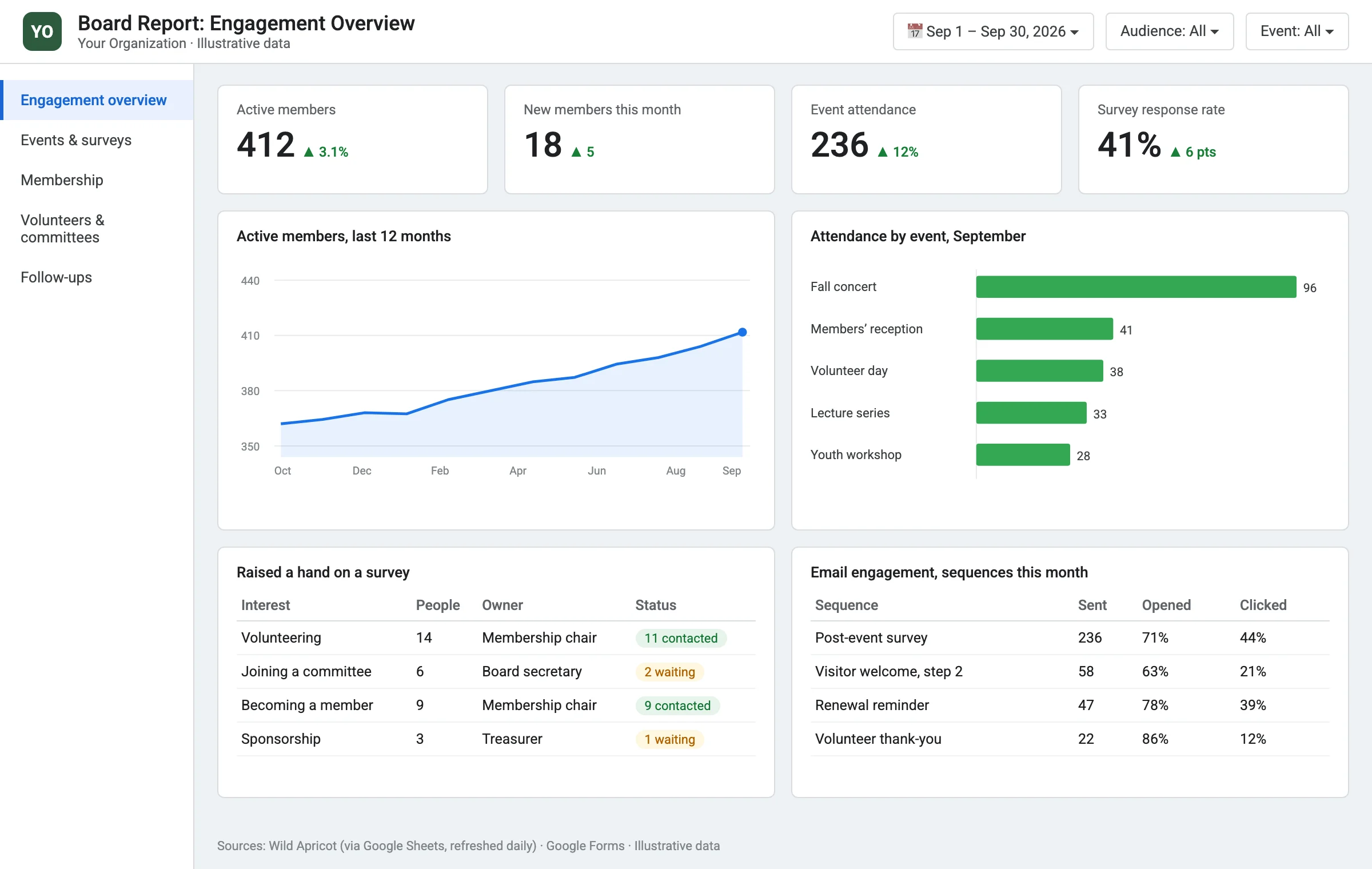
- Board members explore without editing. A date-range picker and filters by event or audience, with nothing they can break.
- The monthly report sends itself. Looker Studio can email a PDF of the report to the board on the first of each month.
- Privacy is built in. Viewers see charts and totals, not the Sheet with names and emails behind them.
Plan for its limits. The layout is a fixed canvas rather than truly mobile-friendly, so design a page that reads well on a phone if your board reads there. Data from a Sheet refreshes on a cache that can be set as short as about 15 minutes. And viewing a restricted report requires a Google account.
If the dashboard is part of a bigger rethink of how your site serves the board and members, start with our guides to association website design and membership website design.
Zapier, Make, or Your Own Script?
Both approaches work. The right one depends on how much logic you need and who you want to own it.
| Make or Zapier | Apps Script in your Google account | |
|---|---|---|
| Best for | Simple one-way copies: a new contact becomes a Sheet row | Sequences, rules, write-backs, batching |
| Cost | A monthly fee that grows with usage | Included with Google Workspace |
| Who owns it | Lives in the vendor's account | Lives in yours |
| Who can change it | Anyone comfortable with a visual builder | Wording and timing: a volunteer, in the Sheet. Logic: a developer |
If you only need one or two simple hand-offs, start with Make or Zapier and see whether that's enough. Once you find yourself paying monthly for a chain of steps with rules in it, that work belongs in a script you own.
The Honest Limits
Daily, not instant. Wild Apricot can notify other systems the moment something changes, but Google's script hosting can't verify that a notification really came from Wild Apricot. A once-a-day check is simpler and safer, and a day's delay is fine for thank-yous and follow-ups.
Scripts have run limits. Each run stops after about six minutes, and Google caps total daily run time. At small-organization size, from hundreds to a few thousand contacts, that's fine as long as the script works in batches.
Someone has to look after it. If Wild Apricot changes its API, or the person who set it up moves on, a volunteer can't debug code. So the scripts belong to a shared role account (membership@yourorg.org, not a person's email), the Wild Apricot API key is stored in the script's private settings, and a weekly "ran OK" email tells someone it's still working.
Your email allowance still applies. Every message the scripts trigger is sent by Wild Apricot and counts against your plan's monthly email limit.
Five Things You Can Do This Week
None of these needs a developer.
1Check your domain status5 min
In Wild Apricot admin: Website → Settings → Domain name, then click every Check button. Any red X tells you which record to fix.
2Merge your SPF records15 min
At your domain provider, look for TXT records starting with v=spf1. If there are two, combine them into one that includes both wildapricot.org and _spf.google.com, and delete the other.
3Turn on Analytics and Search Console20 min
Paste the Analytics tag into Global JavaScript, and add the Search Console verification tag to Raw headers. Next month, you'll know which pages people actually use.
4Create a role account10 min
Set up a shared Google account such as membership@ to own your forms, Sheets, and reports. When a volunteer leaves, the organization's work stays put.
5Embed your first form15 min
Build a two-question post-event survey in Google Forms from the role account, embed it on a Wild Apricot page, and link it from your next event email. You'll learn what your members will answer before investing in anything bigger.
When to Bring Someone In
Everything in the native section and the five tasks above is volunteer work. What's left for a developer is the connected pattern: the scripts that read and write Wild Apricot through its API, the sequences, and the Looker Studio dashboard. It's the integration side of our Wild Apricot consulting, and on a typical small organization it's a bounded, fixed-price project, and everything it produces stays in your Wild Apricot and your Google account. We document it, train whoever will run it, and offer an optional support plan for the scripts.
If what you really need is a custom application rather than a spreadsheet with a script behind it, our guide to turning a spreadsheet into a web app covers when to make that jump, and our custom web development page shows what we build. And if Wild Apricot itself is the obstacle, see the honest alternatives comparison.
More Guides
The rest of our Wild Apricot and association series, in reading order.
Setup, migration, theming, and integrations from a certified partner since 2014. Wild Apricot Themes
How theming really works: the CSS box, overrides, and what a custom theme involves. Wild Apricot Accessibility
What the platform handles, what it can't, and how to fix the rest. Wild Apricot Alternatives
An honest comparison of the alternatives, including when staying put is the right answer. Association Website Design
What an association site must do, the platform landscape, the patterns that work, and what it costs.
Want Wild Apricot and Google Working Together?
Tell me what your volunteers are retyping and what your board keeps asking for. I'll tell you which parts are a settings change, which need a script, and what the script would cost, as a fixed price before you commit. If the free checklist above covers it, I'll say so.
Ask About Your Setup